When connecting with our support team, you will frequently use Microsoft Teams as your main communication tool. Instead of switching between multiple applications, teams allows you to work more efficiently by using the apps tab.
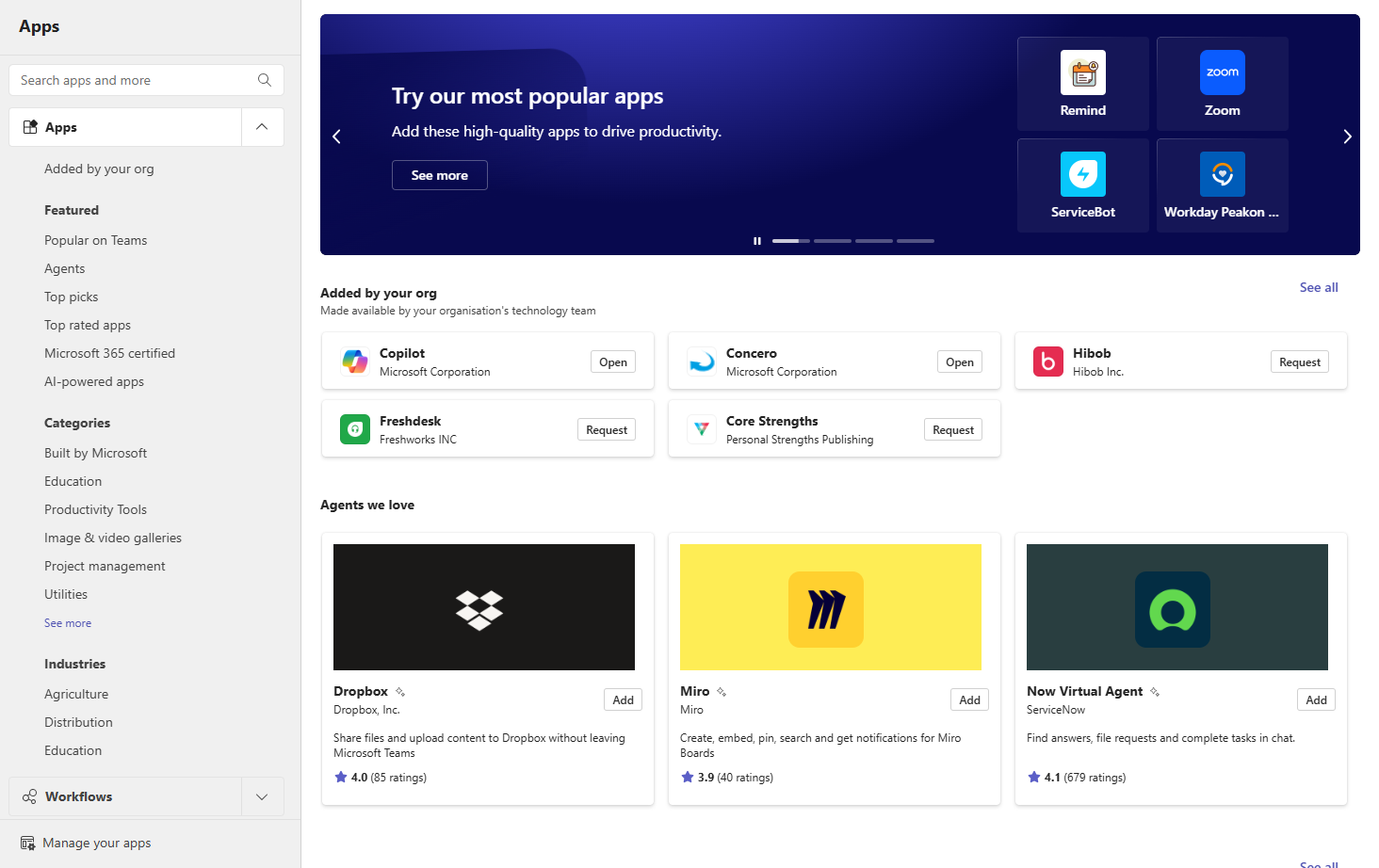
The Apps section in Teams acts as a built-in marketplace where you can find and add tools directly into your workspace.
This makes it easier to manage tasks, access resources, and collaborate without leaving the platform.
For example, you can use apps like Microsoft Word directly inside Teams to take notes while chatting with support. This means you can communicate and work at the same time, improving both productivity and convenience.
What Types of Apps can I use within Teams ?
Teams has different types of apps for different types of uses these are primarily split into two being:
- Microsoft Apps: Built by Microsoft (ease of access, integrated)
- Custom apps: Project Tracking apps made by companies for employees.
How to add apps in teams ?
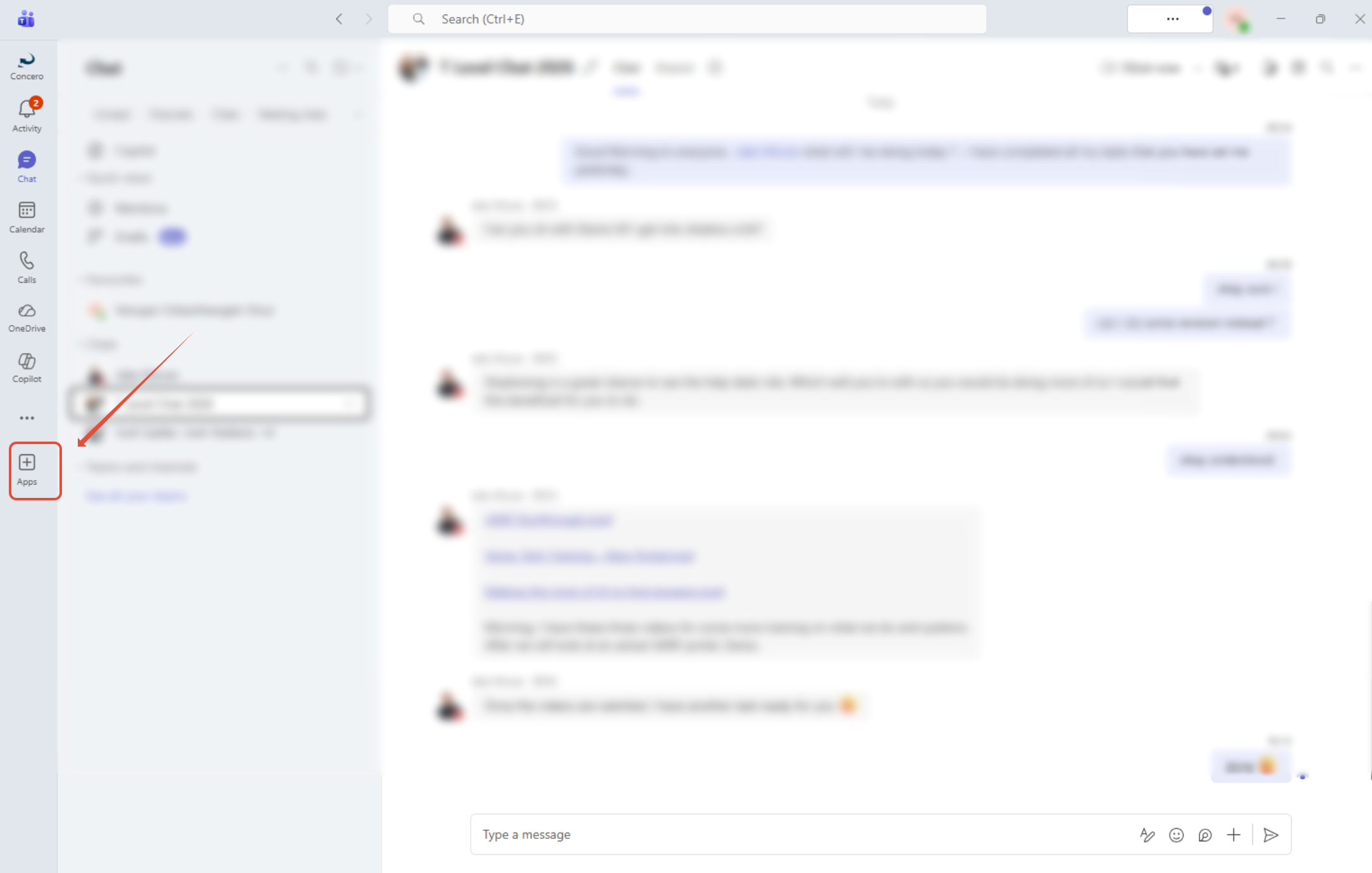
1) After Launching the application you will see the chat screen, from there you must locate the applications tab on the side bar (to the left and press on it), an example has been provided for assistance:
2) This is the Teams App store, from here you can install, manage and uninstall applications to make your experience on teams easier.
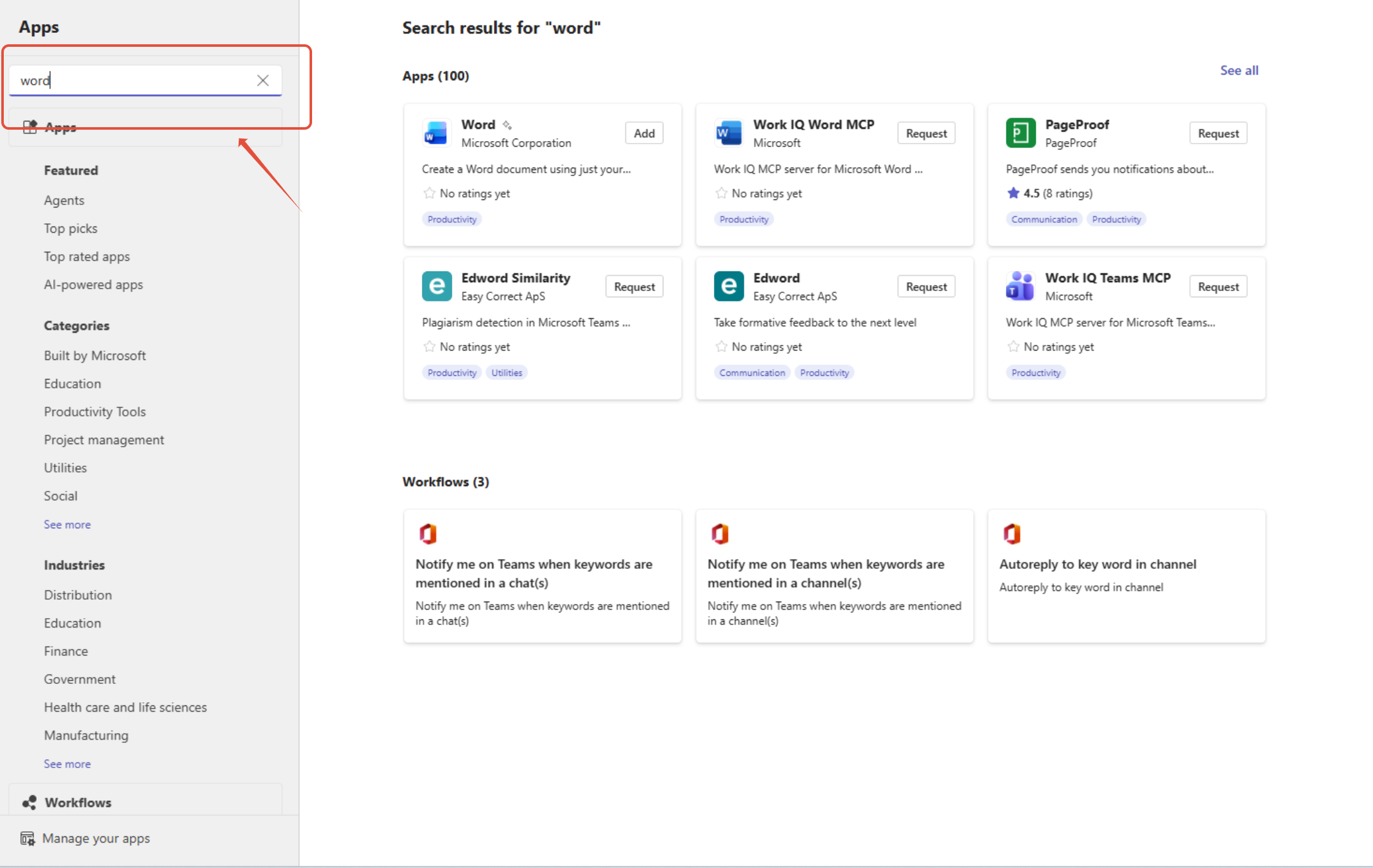
3) After Selecting which application you would want to use (in this case I will install word) you can search it up on the search bar at the top left (like shown in the image below.)
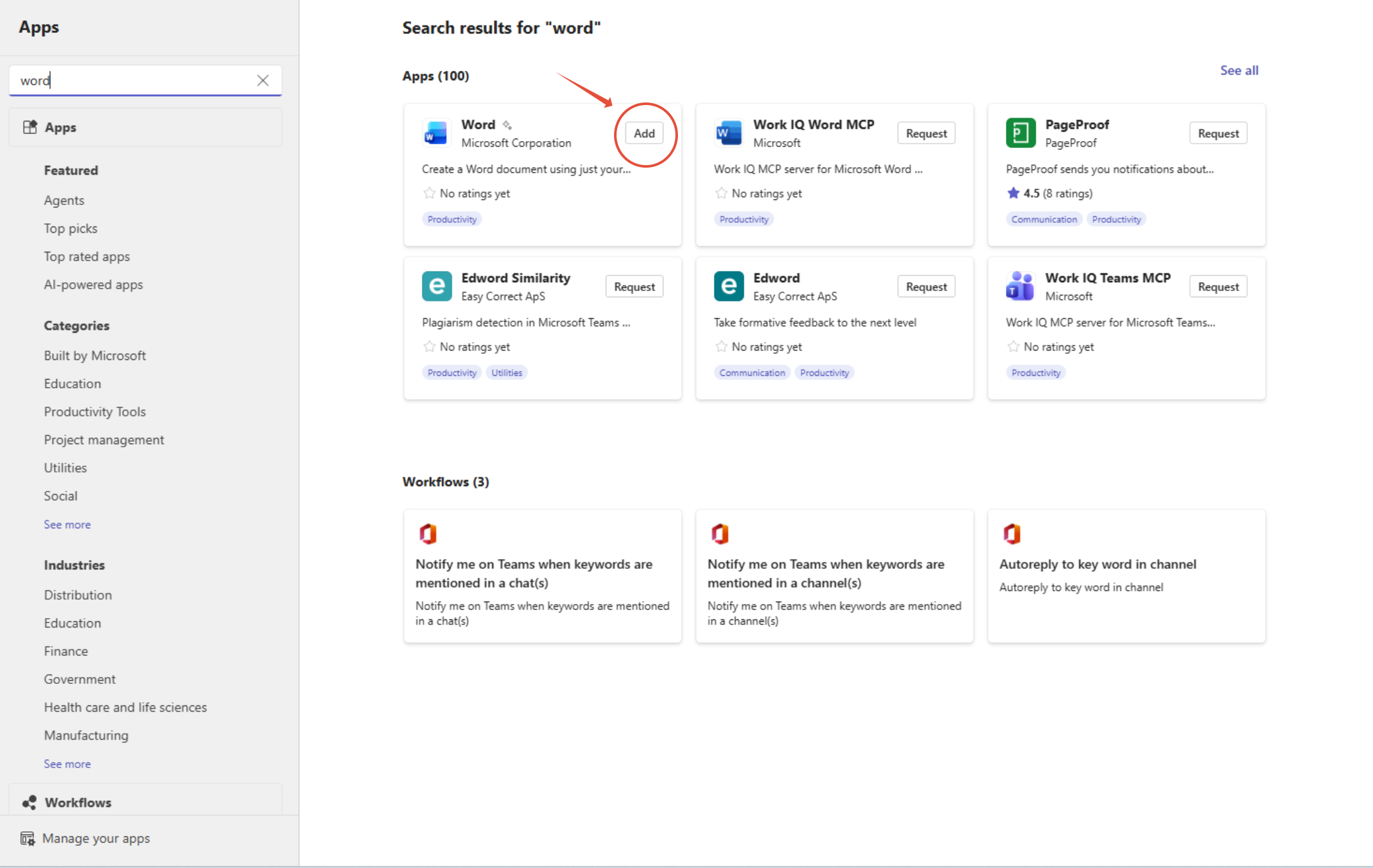
4) Click on the add button next to the application to install this application to install the application and use it.
5) You can access these application by pressing the three dots and typing in your applications name:
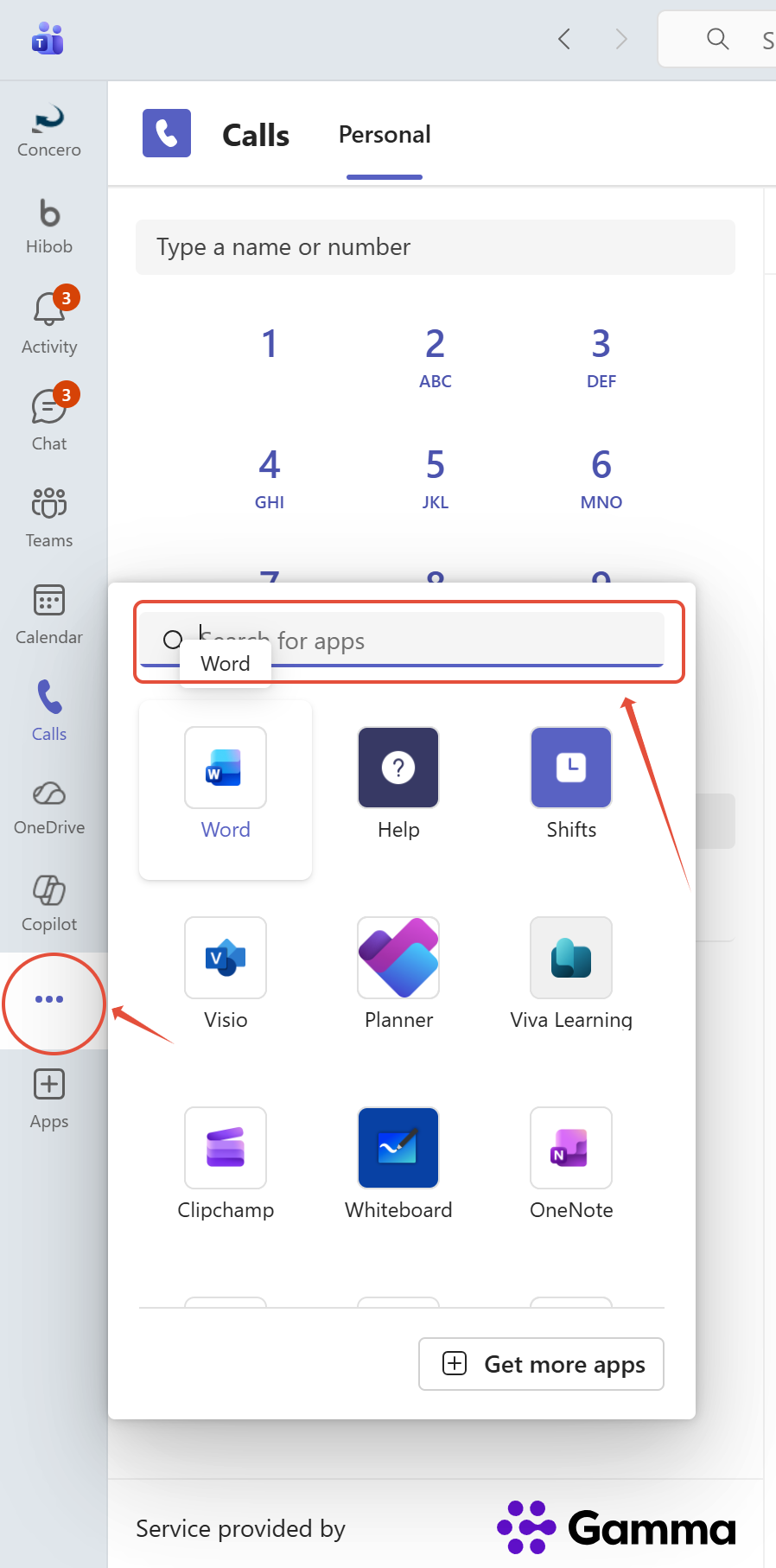
You can now successfully utilise your favourite applications with teams.
Was this article helpful?
That’s Great!
Thank you for your feedback
Sorry! We couldn't be helpful
Thank you for your feedback
Feedback sent
We appreciate your effort and will try to fix the article