Symptoms- You are printing documents and they are cancelled immediately.
- You are printing documents and are presented with a message stating access denied.
CauseThis issue generally occurs if you are not signed in to the Printix client.
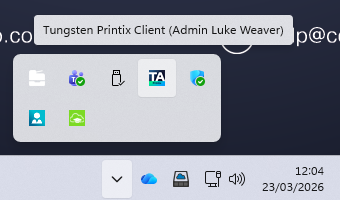
Procedure- Click on the arrow pointing upwards in the bottom right-hand corner of your screen (next to the date and time) to show hidden icons.

- Right-click on the TA icon (Tungsten Printix Client) and click Sign in.
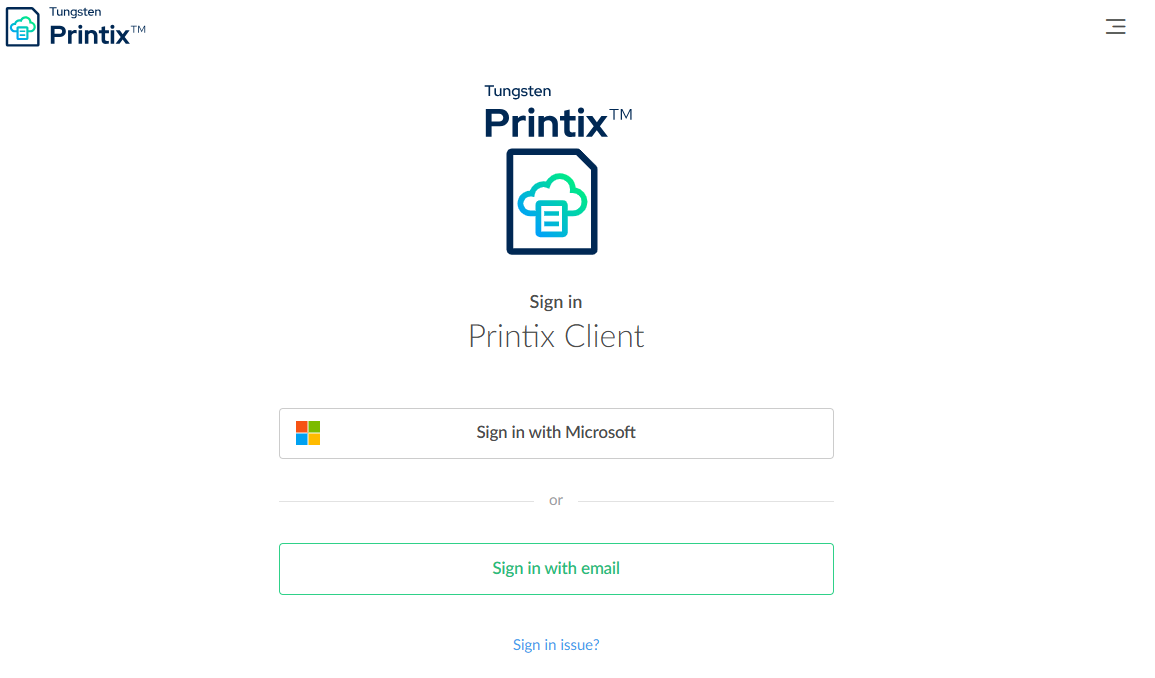
- A web browser will launch to the Tungsten Printix Sign in page - click Sign in with Microsoft.
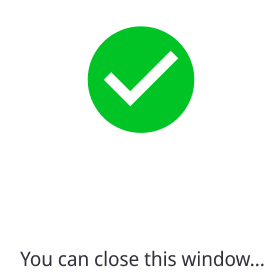
- You should be presented with a success page advising you can close the window - close your browser or the specific tab.
ChecksTry printing your document again - your document should print.
Was this article helpful?
That’s Great!
Thank you for your feedback
Sorry! We couldn't be helpful
Thank you for your feedback
Feedback sent
We appreciate your effort and will try to fix the article