In this article you will be shown how to access your SharePoint Recycle Bin to help allow you restore or delete content.Step By Step Guide
Step 1: Open your web browser via Microsoft edge
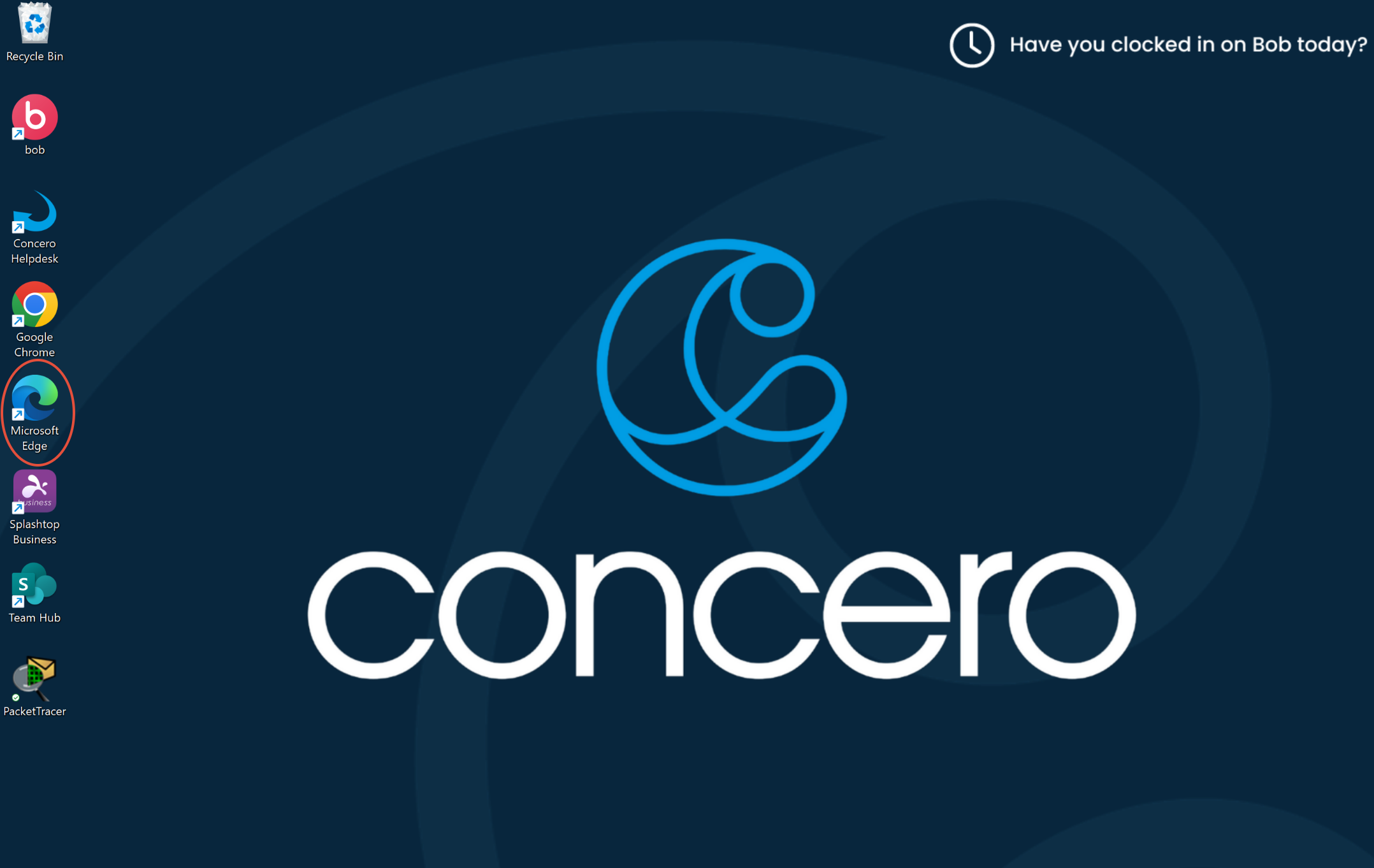
This is where you will need to go to access office.com via the web
Step 2: Search office.com and sign in
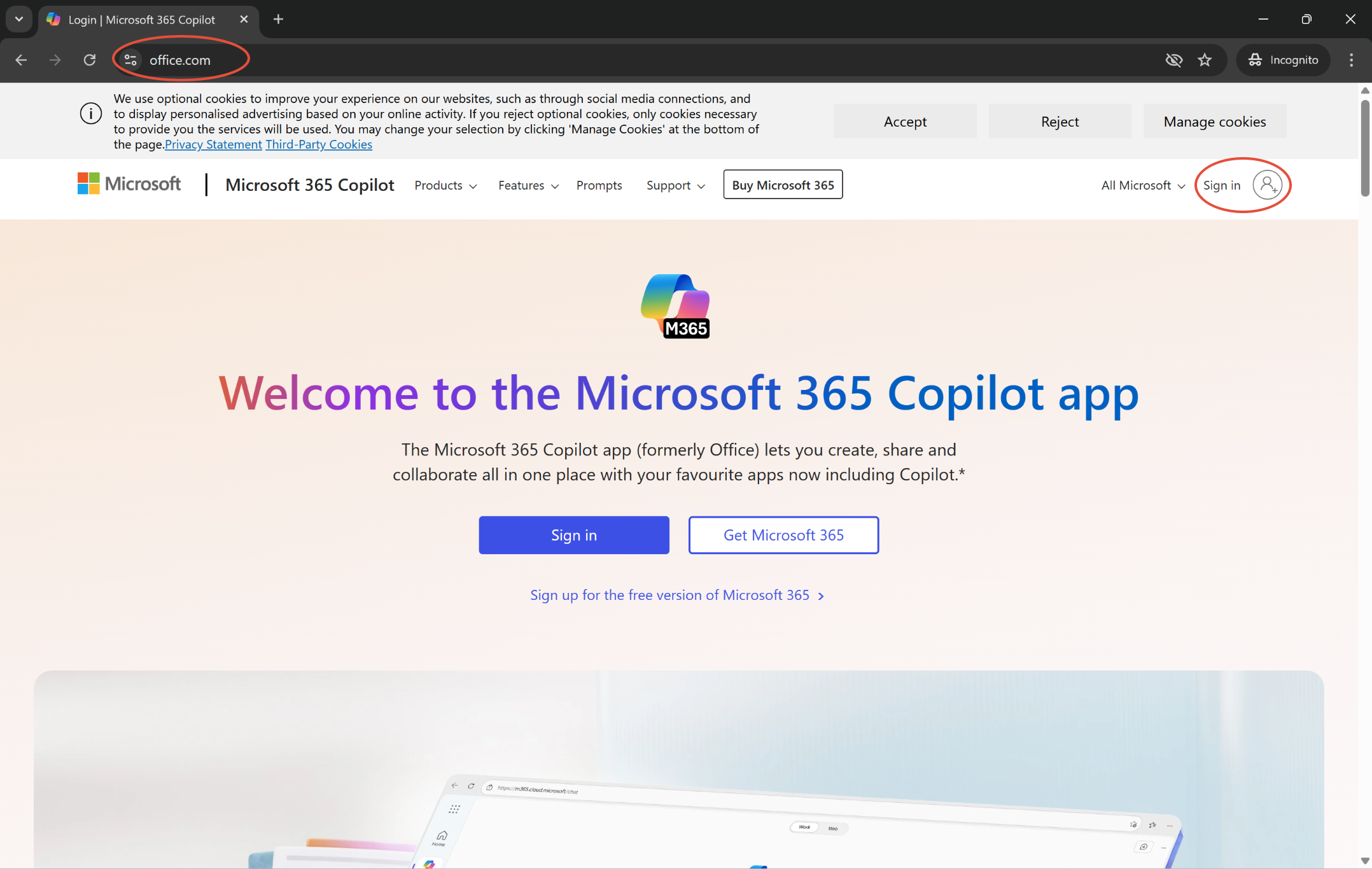
This shows where to search office.com and where to sign in.
Step 3: Select Apps
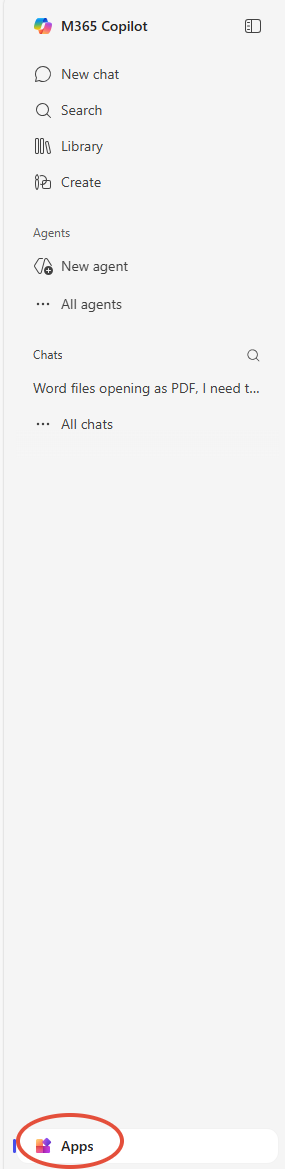
This is where you will find the SharePoint app
Step 4: Select SharePoint
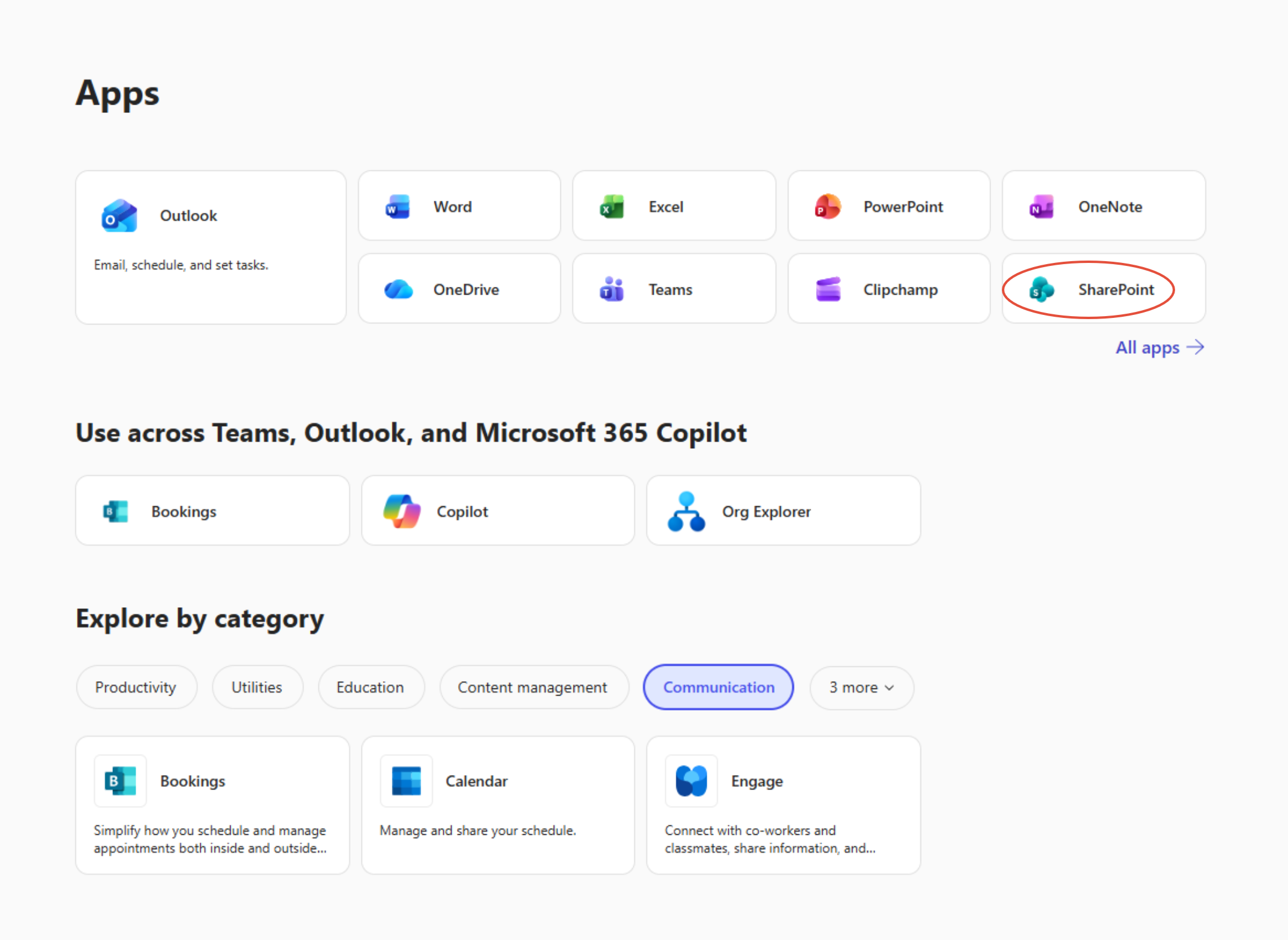
Here is the SharePoint app
Step 5: Select your active site
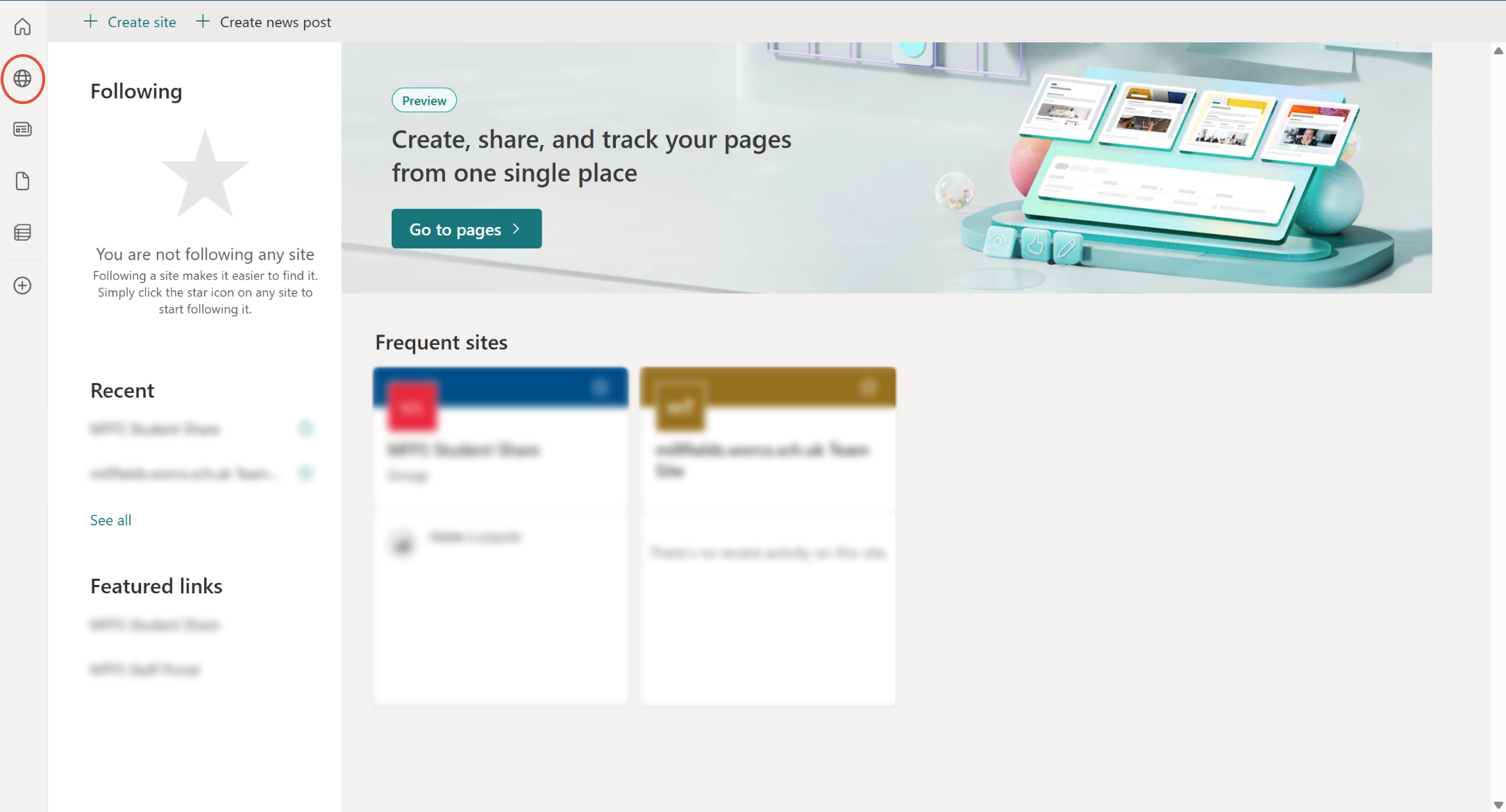
This is where you can see your current sites when selecting the my sites icon on the left side of your screen.
Step 6: Select Recycle Bin
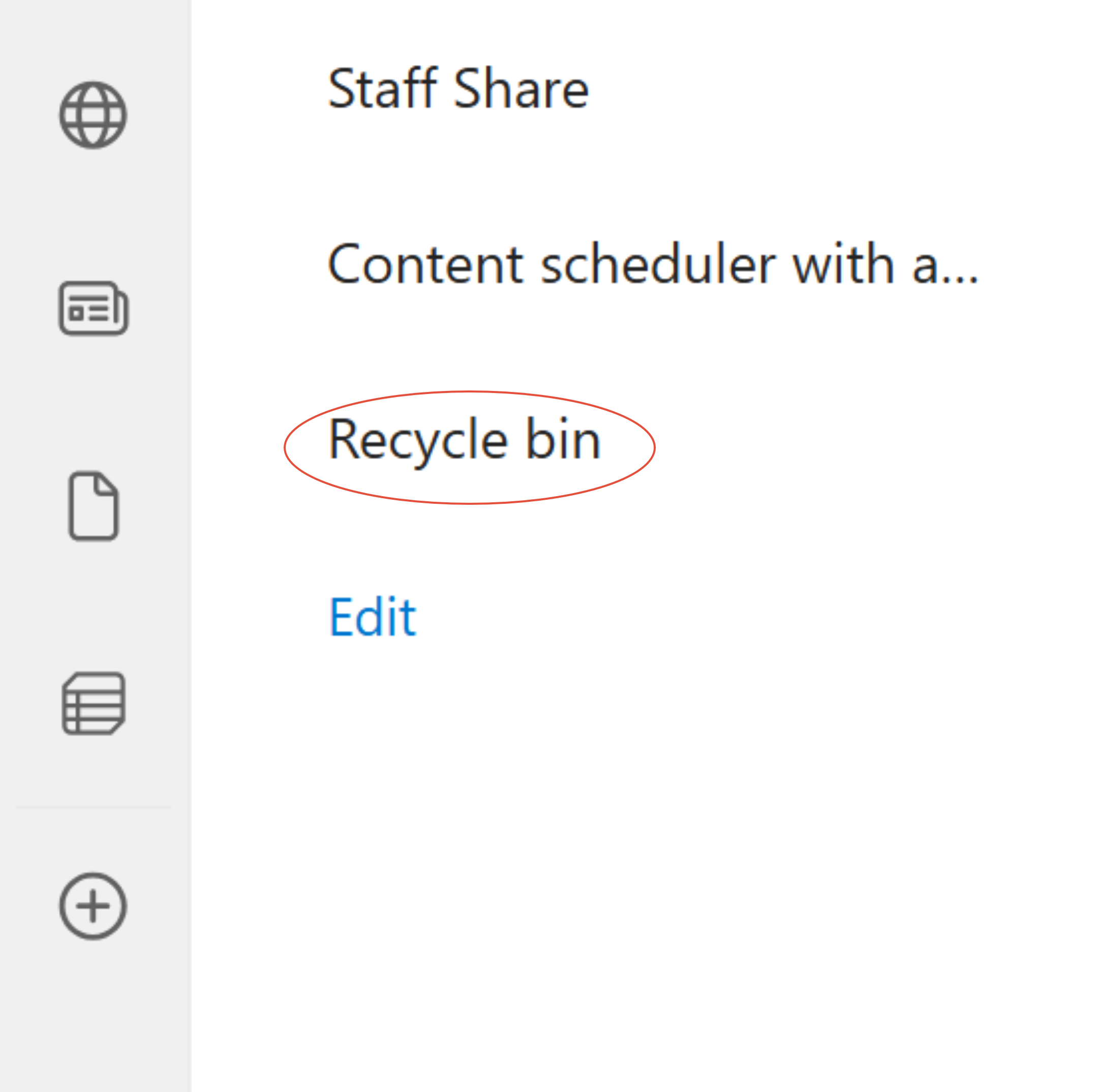
The recycle bin will be shown on the left side of your screen alongside the other listed options as shown in step 3.
Step 7: Restore or Delete Desired content (Optional)

Once you follow the Step 1. on the screenshot you can chose weather you want to delete or restore content, to restore content you have a 93 day retention period meaning 93 days until they are gone from the recycle bin.
Was this article helpful?
That’s Great!
Thank you for your feedback
Sorry! We couldn't be helpful
Thank you for your feedback
Feedback sent
We appreciate your effort and will try to fix the article