This article covers managing Sharepoint permissions within your Sharepoint site when you want them to be different to the default permissions of standard members.

An example may be a safeguarding folder which is within Staff Share. You want your staff to access every folder within Staff Share, except the safeguarding one.
You must be an owner of the specific Sharepoint to carry out these actions!
1) Go to www.microsoft365.com and sign in.
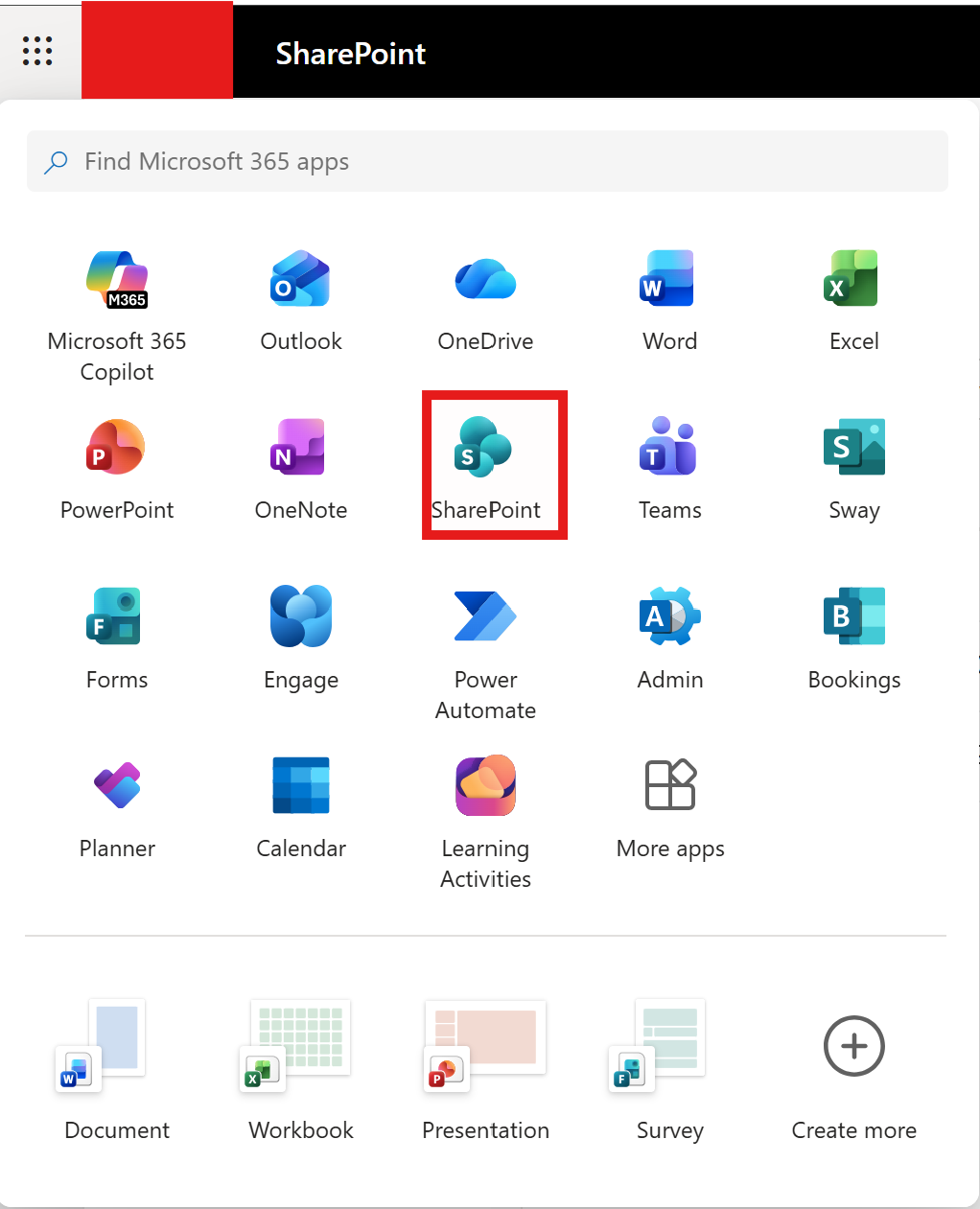
2) Open your specific Sharepoint by going to the waffle in the top left and select Sharepoint.
3) Navigate to the folder you wish to restrict access to. The below example would allow all members to access Class Planning -> Year 1 - AB but we are editing the permissions into Y1 AB 25 26
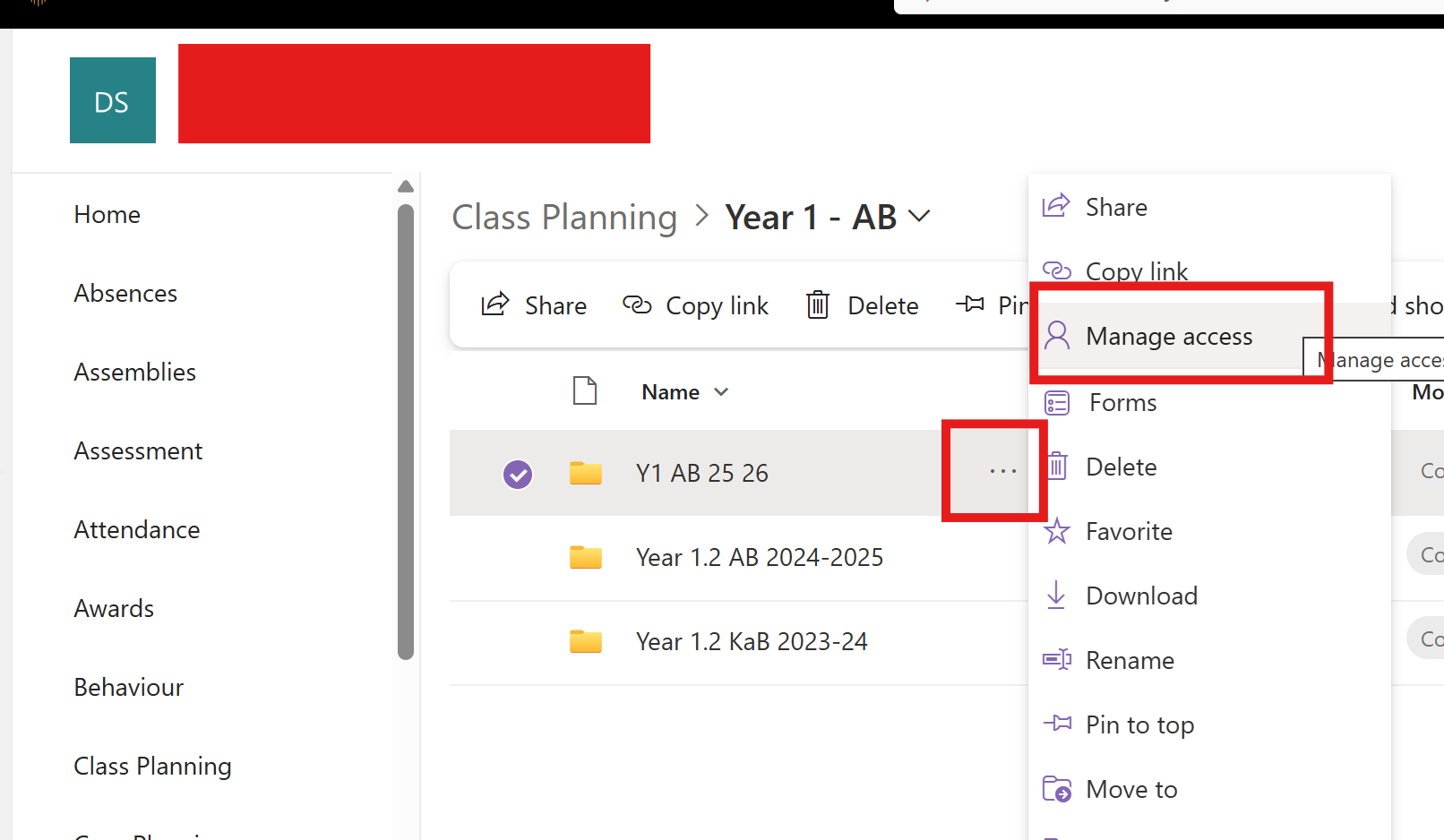
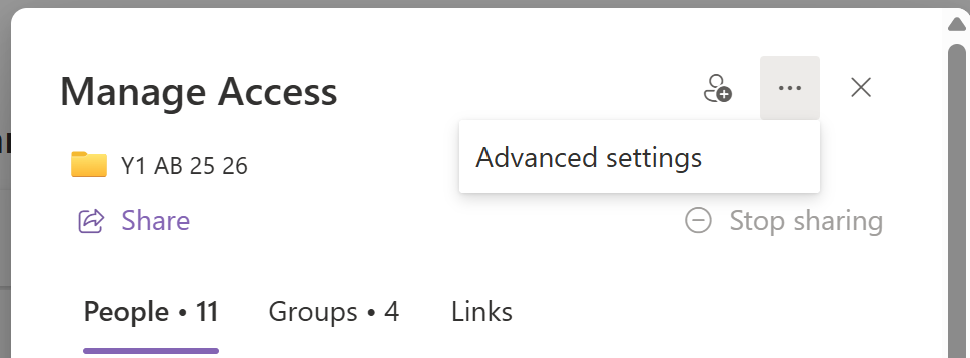
4) Select the ellipsis and advanced settings.
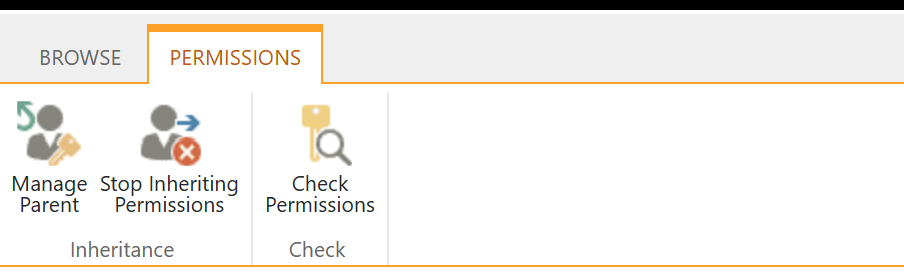
5) Select "Stop inheriting permissions"
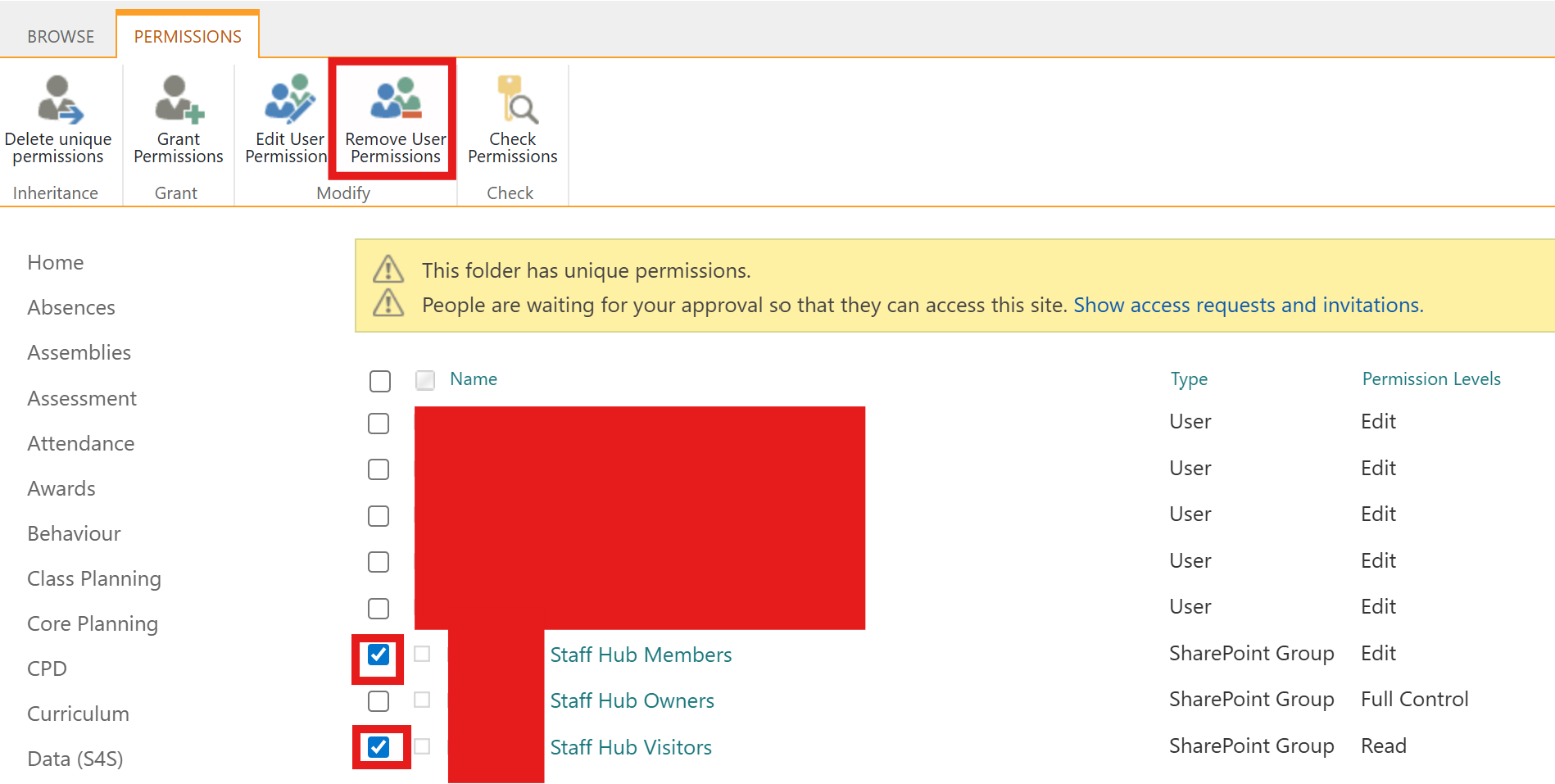
6) Tick the members and visitors as well as any staff you want to remove permissions to this folder from. Then select remove user permissions.
7) Select Grant Permissions -> Enter your users you would like to share with as well as whether they can just view or edit and select share.
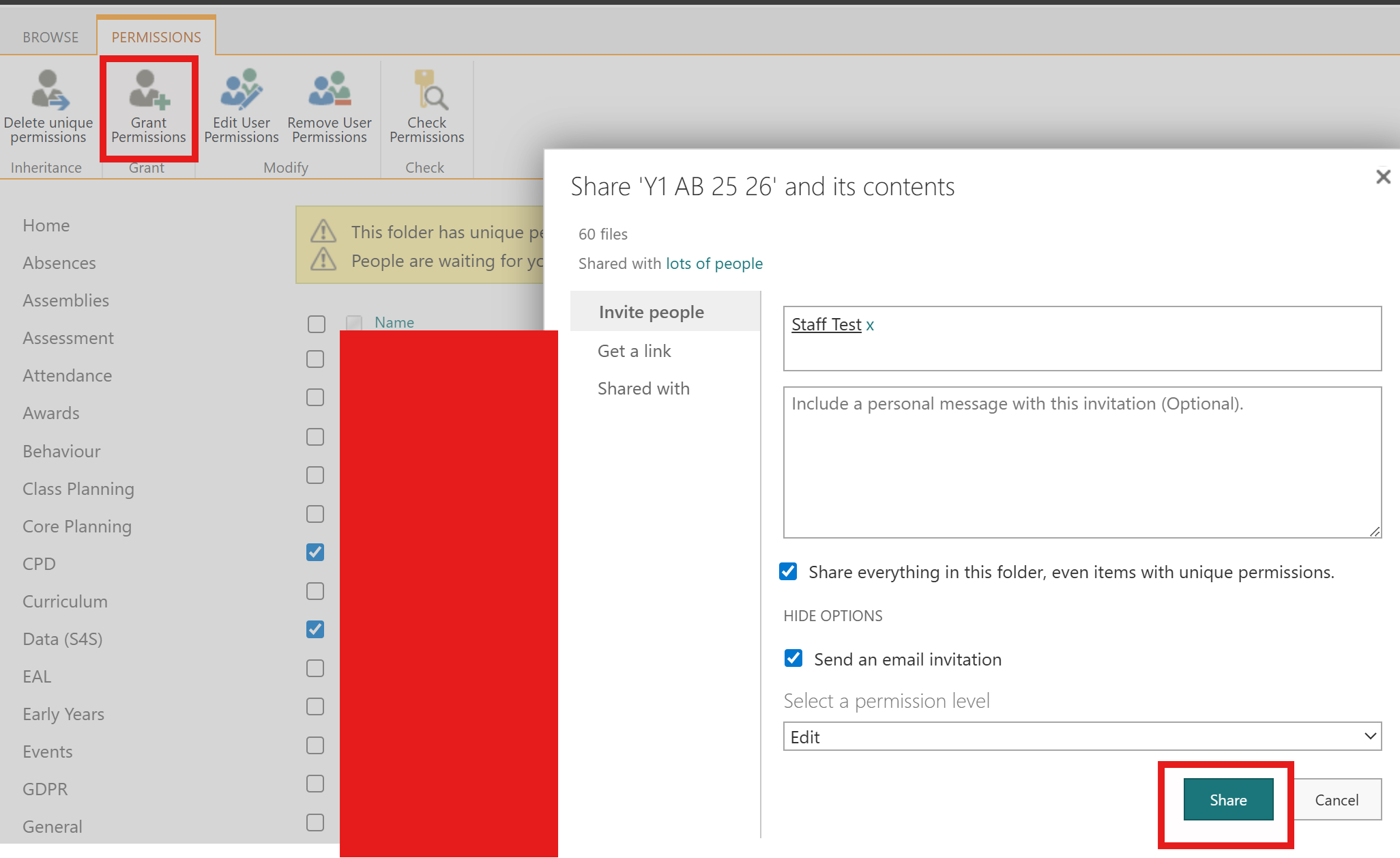
The folder now has unique permissions.
Was this article helpful?
That’s Great!
Thank you for your feedback
Sorry! We couldn't be helpful
Thank you for your feedback
Feedback sent
We appreciate your effort and will try to fix the article