Bluetooth is used to wirelessly connect devices together, this can be used for: input devices (keyboards) and output devices (Monitors, printers and speakers).There are two main methods to connect to Bluetooth.
Just to Note :
Before starting to connect your device , please ensure your device is set in pairing mode, this can be done using the manufacturers instruction manual. Without pairing mode the device will not be able to be identified to connect to.
Method 1
1 ) You must ensure that you have signed into your device, you can tell that you have signed into your device when you can see your home screen an example has been provided below :
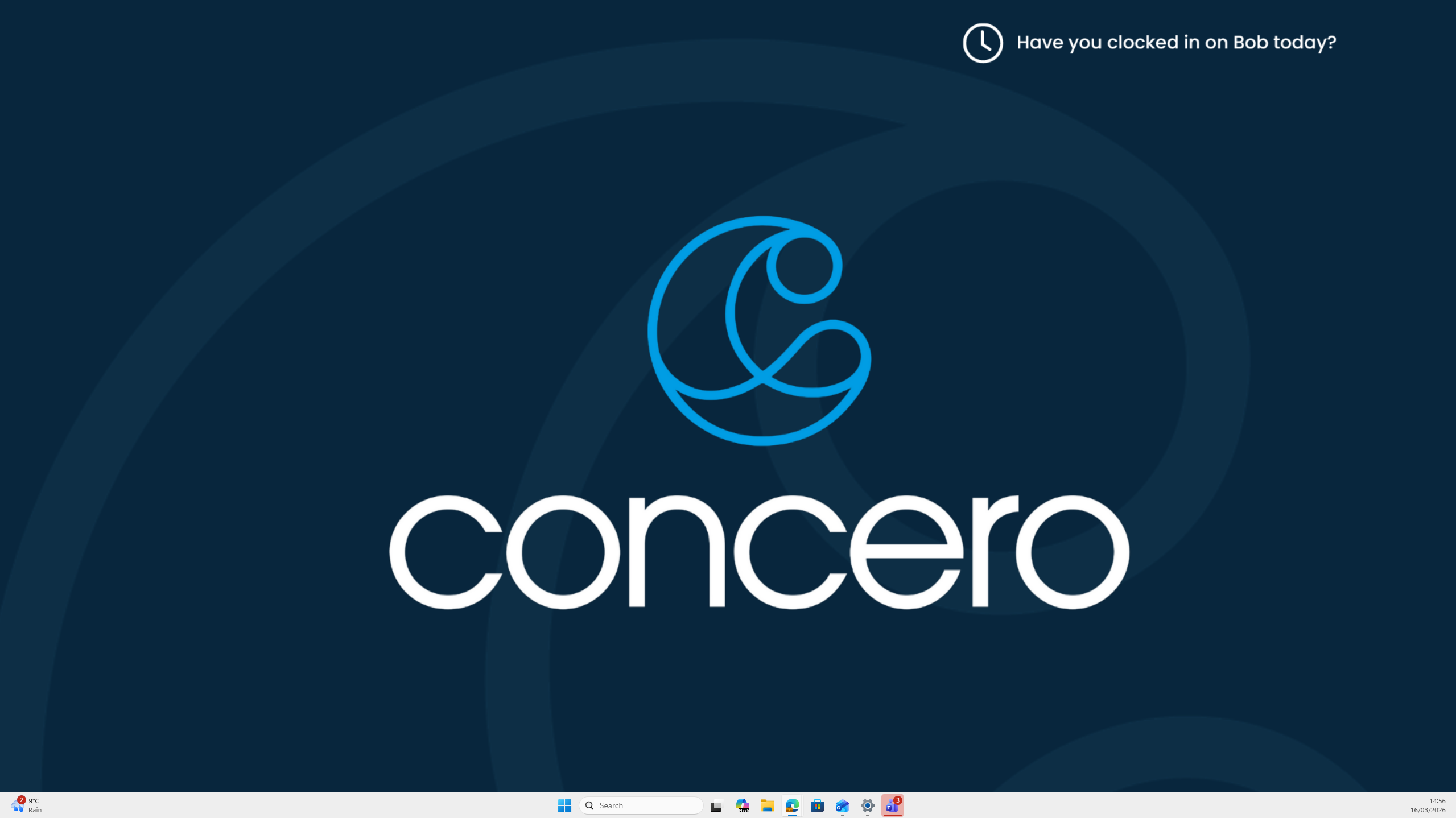
2) After you see this home screen you must ensure that the device has Bluetooth enabled, you can see this by pressing the bottom right on the task bar where the WIFI logo is shown:

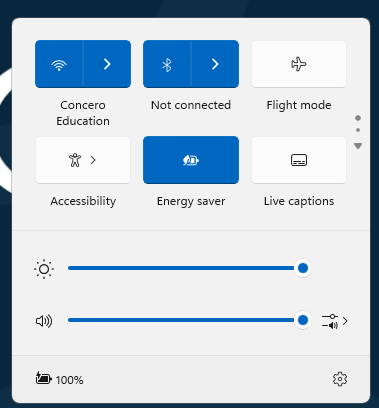
3) When you press on this section of the task bar you will be greeted with a pop up box with things like WIFI, Bluetooth, battery saver, volume and brightness etc . This should look like this :
Quick Tip :
An easy method to identify if Bluetooth is turned on is by checking the colour, if the colour is different to the panel colour it means that it is on. In my case we can see that power saver, WIFI and Bluetooth are all enabled.
4 ) From here it is easy to set up Bluetooth, you can simply press the arrow next to the Bluetooth Icon which will have another pop up where you can toggle it on or off and connect devices to your computer .
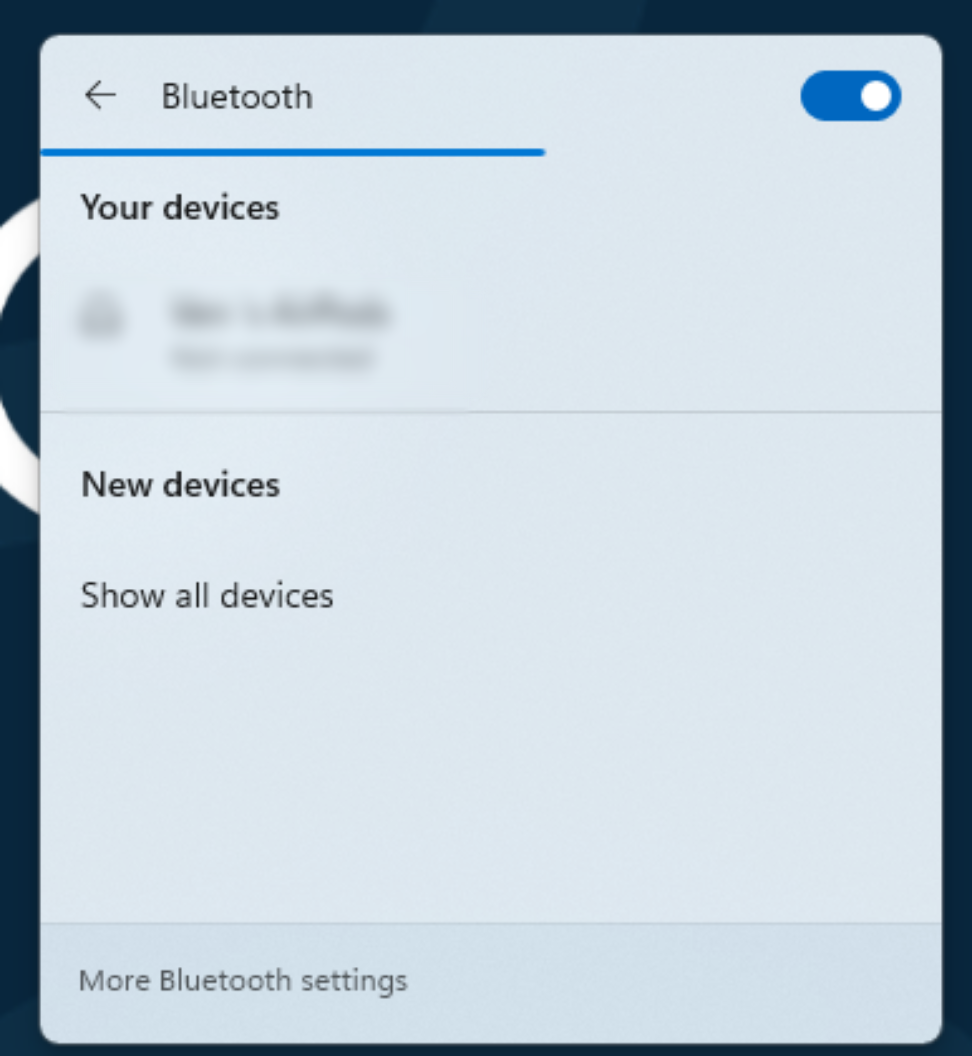
5) You can connect your devices by pressing on the devices name for example it can be "Jacks Airpods". After giving it some time it will display a message saying
"Your Device has been successfully Connected "
Press " Done " to use your device successfully.
Method 2
This Method is slightly longer but work will work the same as method 1.
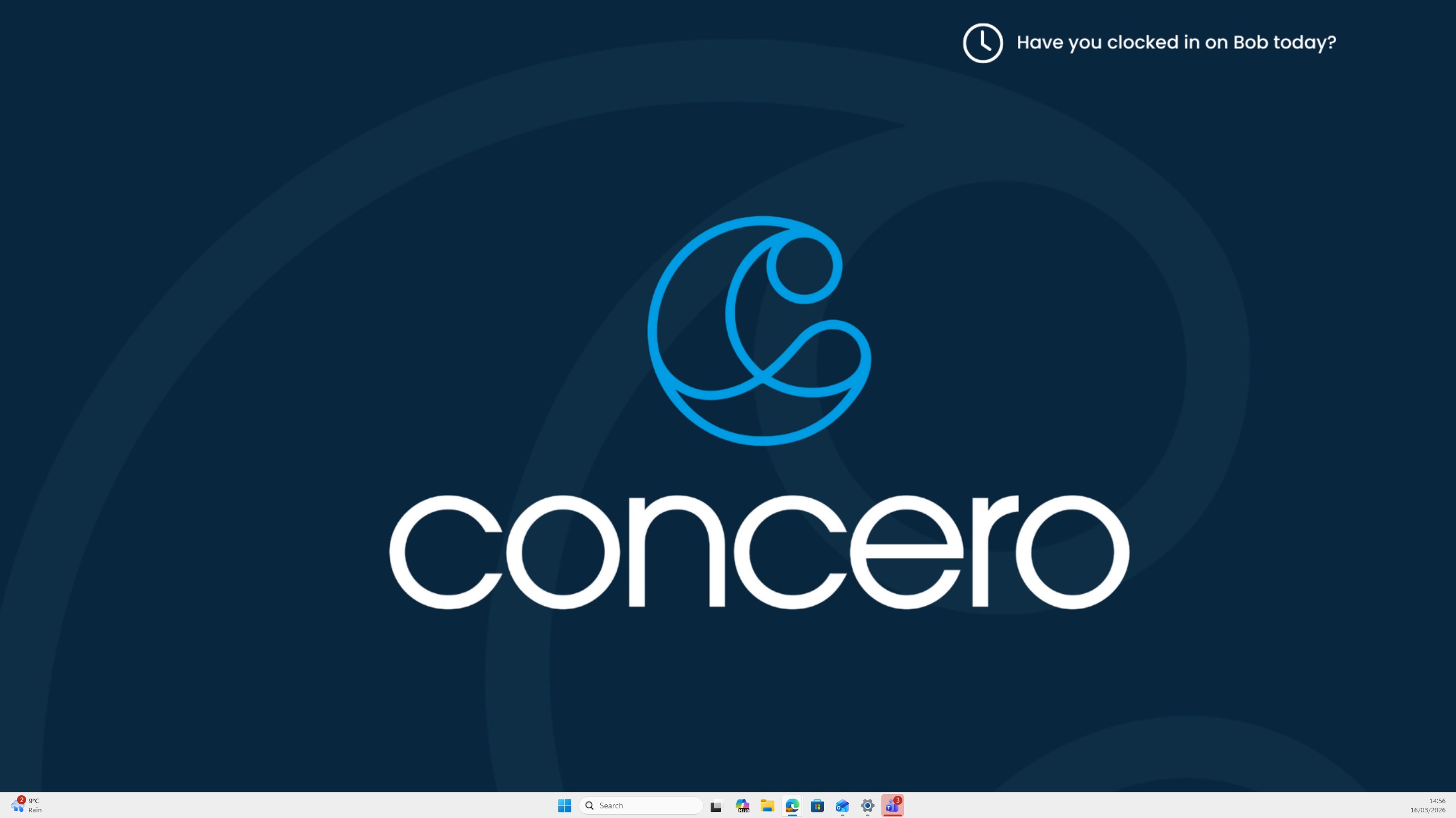
1) As usual, you must ensure that you are signed into your device, you can tell if you are signed into your device when you are greeted with your home screen, my home screen is shown below and I know when I'm signed in when I see this.
2) After being greeted with your home screen you can press the Windows button and press the button "I" simultaneously. This is a short cut to open up settings quickly. In a scenario where your " I " button doesn't work, you can press the windows button on the screen (window like icon) and search up "Bluetooth".
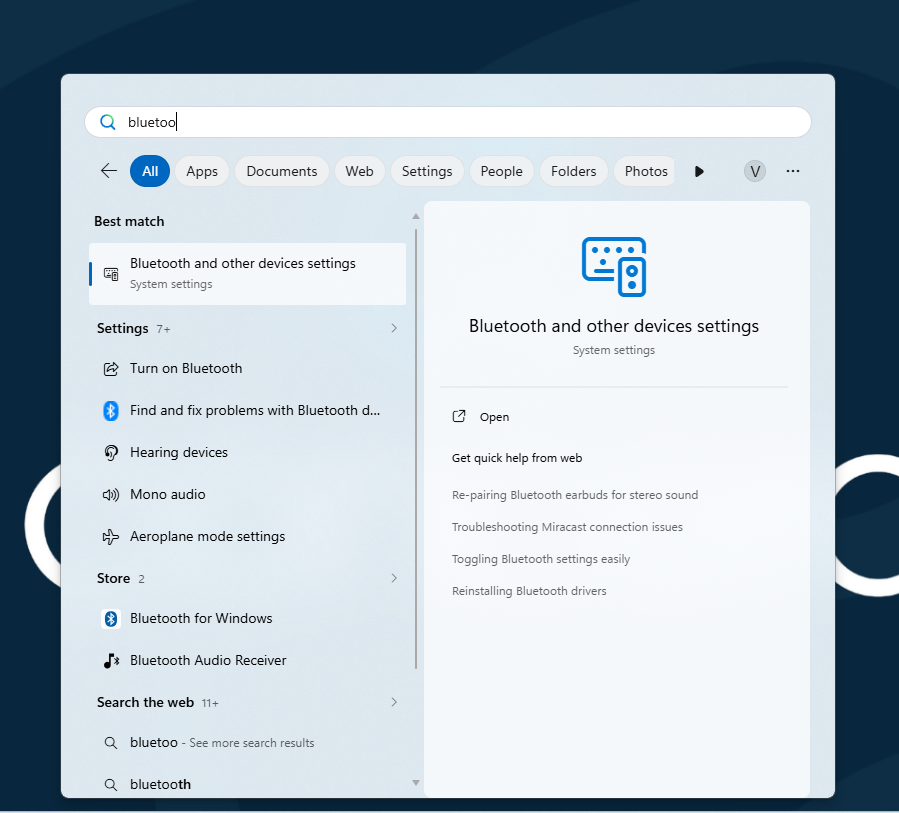
3) Press the enter button to get redirected to the settings app and open up the Bluetooth tab .
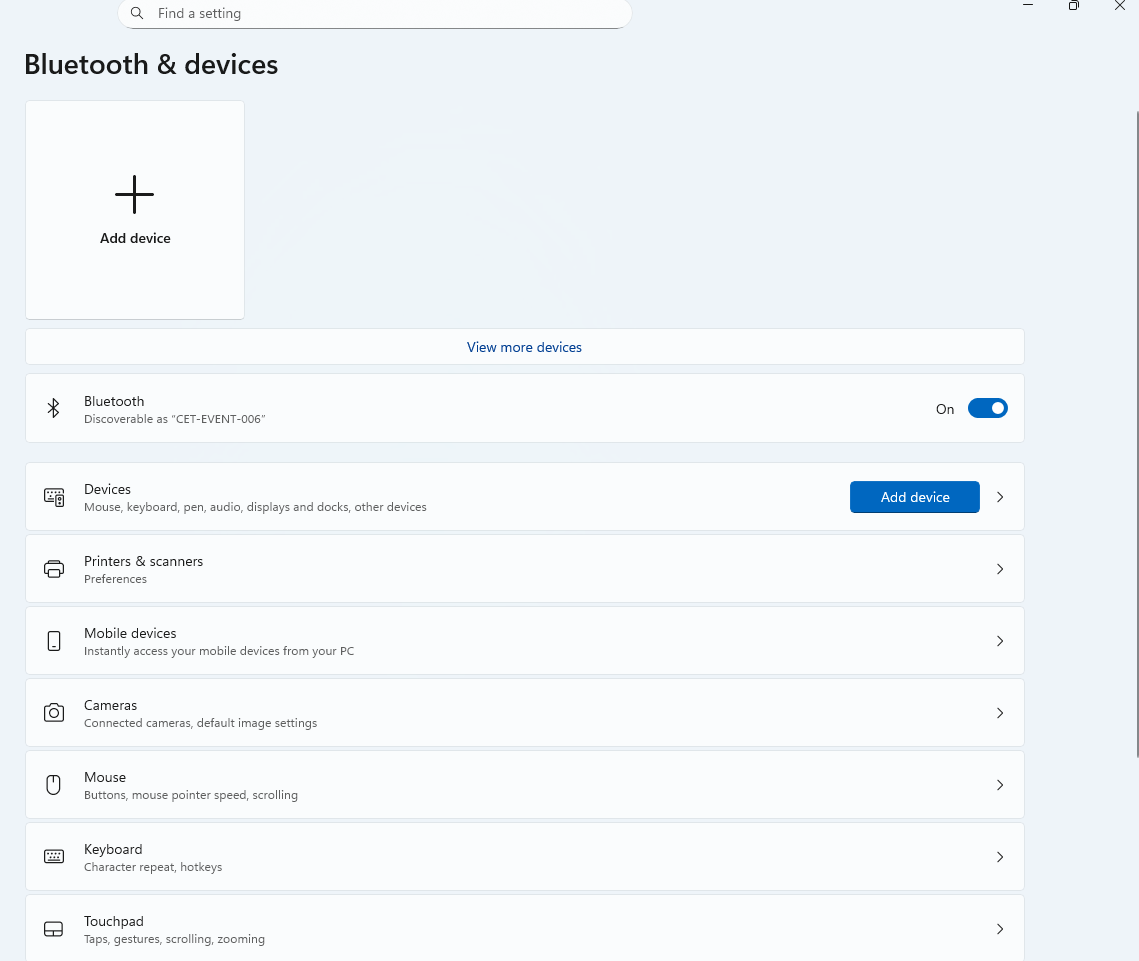
4) When you have been redirected to this screen you should be able to see something similar to this screen. After seeing this screen you will see an "Add Device " icon, you press this icon and it will have a pop up.
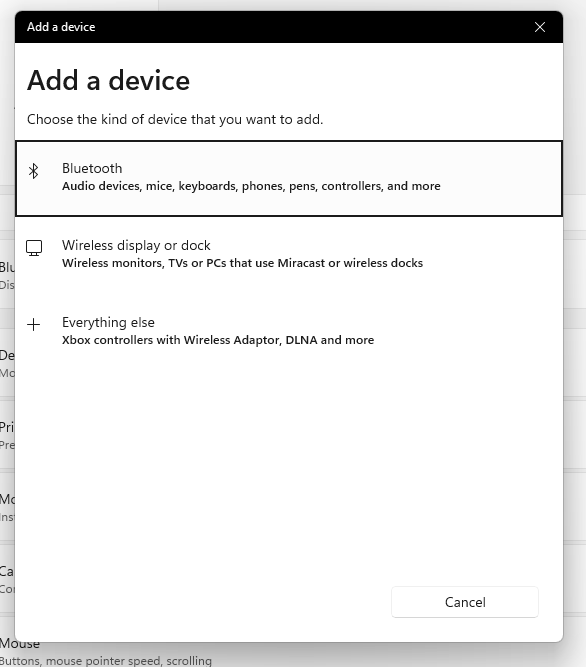
5) In this specific given scenario, you will press the Bluetooth tab which will connect any devices. The devices name will be shown on this tab here:
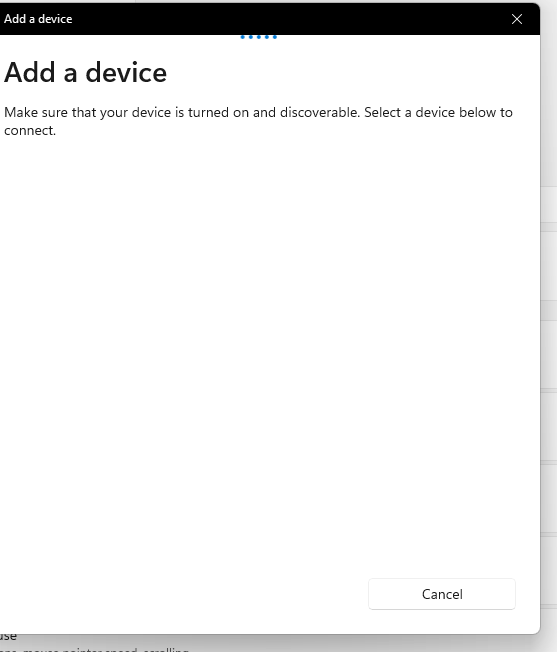
6) After seeing the name of your device you can press on it, this then allows you to connect to your device.
This will then prompt you with a message saying:
"Device has been connected Successfully "
After pressing "Done" you have connected your device successfully .
Was this article helpful?
That’s Great!
Thank you for your feedback
Sorry! We couldn't be helpful
Thank you for your feedback
Feedback sent
We appreciate your effort and will try to fix the article